
Introduction
If you’ve ever wanted a sceptical, technically rigorous voice in your Slack channel to challenge architecture decisions before they ship, the Architect Agent is that. It’s a Slack bot that behaves like a Chief Systems Architect: it interrogates designs, surfaces failure modes, and asks the questions you should have asked before committing to a stack.
The use case is straightforward. You paste a proposed architecture—FastAPI, Firebase auth, FFmpeg SRT-to-HLS, Kubernetes on AWS, S3, CloudFront, PostgreSQL, Stripe—and the agent responds with structured analysis: top failure risks, security holes, cost-to-scale breakdowns, RTO/RPO expectations, rollback strategies. It doesn’t rubber-stamp. It pushes back. That’s the point.
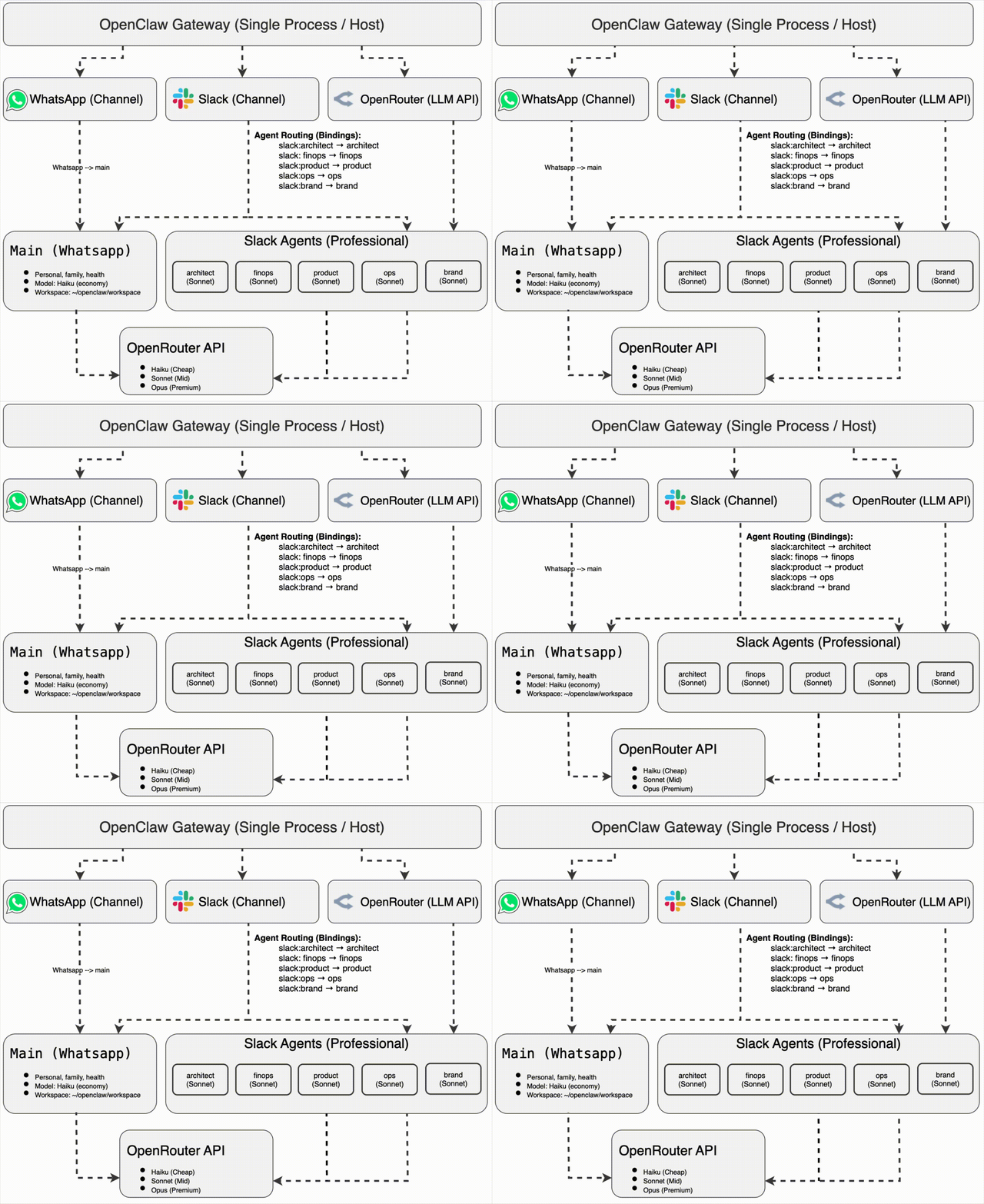
This guide walks through the full setup: OpenClaw as the multi-agent gateway, Slack as the channel, and OpenRouter as the LLM provider. The data flow is:
Slack → OpenClaw Gateway → Architect Agent → OpenRouter (Claude) → Response → Slack
You’ll need OpenClaw installed, an OpenRouter API key, and a Slack workspace. The setup is suitable for experimentation and internal team use. We’ll cover when not to deploy this publicly and what production hardening would require.
Prerequisites
| Requirement | How to obtain |
|---|---|
| OpenClaw | docs.openclaw.ai or npm install -g openclaw |
| OpenRouter API key | openrouter.ai |
| Slack workspace | Any workspace where you can install apps |
Verify OpenClaw:
openclaw --version
Architecture Decisions: Why These Choices
Before the step-by-step, a few design choices worth understanding.
Socket Mode vs Public Webhook
Slack bots can receive events in two ways:
- Public webhook: Slack sends HTTP POST requests to a URL you host. You need a publicly reachable endpoint, TLS, and something to handle retries and verification.
- Socket Mode: The bot initiates an outbound WebSocket to Slack. No public URL, no ingress, no firewall changes. The connection is initiated from your side.
OpenClaw uses Socket Mode. That means you can run the gateway on a laptop, a VM behind NAT, or anywhere with outbound internet. No need to expose ports or configure reverse proxies. The trade-off: Socket Mode has different rate limits and connection semantics than the Events API over HTTP, but for a single-agent setup it’s sufficient.
OpenRouter vs Direct Anthropic
OpenRouter is a unified API that routes to multiple LLM providers (Anthropic, OpenAI, others). Using it instead of calling Anthropic directly gives you:
- Model flexibility: Switch models or providers without changing integration code. OpenClaw already supports model selection per agent.
- Fallback chain: If the primary model fails or is rate-limited, OpenRouter can route to a fallback.
- Single integration point: One API key, one endpoint. Useful when you run multiple agents with different model tiers.
The cost is an extra hop. For most workloads the latency impact is negligible. If you need minimal latency and only ever use Claude, you could wire OpenClaw to Anthropic directly, but that would require customisation beyond this guide.
Model Choice: Sonnet vs Opus
The Architect uses Claude Sonnet (claude-sonnet-4-6) by default. Sonnet offers strong reasoning for architecture review without the cost and latency of Opus. For most design critiques—failure modes, security gaps, cost analysis—Sonnet is sufficient.
Upgrade to Opus when you need deeper, multi-step reasoning or very large context. You can override per-agent:
openclaw config set agents.list[1].model.primary "openrouter/anthropic/claude-opus-4-6"
Channel-to-Agent Binding
OpenClaw routes incoming messages to agents via bindings. A binding maps (channel, accountId) to an agent. For the Architect:
- Channel:
slack - Account:
architect(the Slack app you create) - Agent:
architect
So messages sent to the Architect Slack app are routed to the Architect agent. Other Slack apps (e.g. finops, product) would bind to different agents. One Slack app per agent; all can live in the same workspace. Users @mention the bot they want.
Step-by-Step Setup
Phase 1: OpenRouter Configuration
1.1 Set API Key
OpenClaw needs an OpenRouter API key to call the LLM. Set it in your environment:
export OPENROUTER_API_KEY="sk-or-v1-..."
For persistence, add to ~/.openclaw/.env:
OPENROUTER_API_KEY=sk-or-v1-...
Alternatively, use the interactive configurator:
openclaw configure --section model
Select OpenRouter and enter your key. This writes to the agent’s auth profile.
1.2 Set Default Model (Optional)
If you want Sonnet as the default for all agents:
openclaw models set openrouter/anthropic/claude-sonnet-4-6
You can also set the model per-agent after creating the Architect (Phase 3).
Phase 2: Slack App Setup
You need a Slack app with Socket Mode enabled and the correct OAuth scopes. One app per agent.
2.1 Create the App
- Go to api.slack.com/apps
- Create New App → From scratch
- App Name:
Architect Bot(orOpenClaw Architect) - Workspace: Select your workspace
- Create App
2.2 Enable Socket Mode
Socket Mode lets the app receive events over an outbound WebSocket instead of HTTP.
- Settings → Socket Mode
- Toggle Enable Socket Mode → On
- Under App-Level Tokens, click Generate
- Token Name:
openclaw - Scopes:
connections:write - Generate
- Copy the token (
xapp-1-...). Slack shows it once; store it securely.
2.3 Configure Bot Token Scopes
The bot needs permission to read messages and reply.
- OAuth & Permissions (left sidebar)
- Under Bot Token Scopes, add:
app_mentions:read— required for the bot to see @mentionschat:write— send messageschannels:history— read public channel messages (if used in channels)im:history— read DMsim:write— send DMsusers:read— resolve user info
- Install to Workspace → Allow
- Copy the Bot User OAuth Token (
xoxb-...)
Without app_mentions:read, the bot will not receive events when @mentioned. This is a common oversight.
2.4 Add Bot to Slack
- Channel:
/invite @Architect Botin the target channel - DM: Open a direct message with the bot from the Apps section
Phase 3: OpenClaw Channel and Agent
Order matters. Register the Slack channel before creating the agent. Otherwise you’ll get Unknown channel "slack".
3.1 Add Slack Channel
Option A — Interactive
openclaw configure --section channels
- Select Slack
- Account ID:
architect - App Token: paste
xapp-... - Bot Token: paste
xoxb-...
Option B — Manual config
Edit ~/.openclaw/openclaw.json and ensure channels includes:
channels: {
  slack: {
    enabled: true,
    mode: "socket",
    accounts: {
      architect: {
        appToken: "xapp-1-...",
        botToken: "xoxb-...",
      },
    },
  },
},
Verify:
openclaw channels list
You should see slack with account architect.
3.2 Create Architect Agent
openclaw agents add architect \
  --workspace ~/.openclaw/workspace-architect \
  --bind slack:architect
This creates:
~/.openclaw/workspace-architect/— agent workspace (persona files go here)~/.openclaw/agents/architect/agent/— agent directory (auth, sessions)- Binding:
slack:architect→ Architect agent
Verify:
openclaw agents list --bindings
Expected: architect → slack:architect
3.3 Assign Model (if not using default)
Find the agent index:
openclaw config get agents.list
Then set the model (e.g. index 1):
openclaw config set agents.list[1].model.primary "openrouter/anthropic/claude-sonnet-4-6"
Or edit openclaw.json and add to the architect entry:
{
  id: "architect",
  name: "Chief Systems Architect",
  workspace: "~/.openclaw/workspace-architect",
  agentDir: "~/.openclaw/agents/architect/agent",
  model: { primary: "openrouter/anthropic/claude-sonnet-4-6" },
}
Phase 4: Persona Files
The Architect’s behaviour is defined by three files in its workspace: SOUL.md (identity), AGENTS.md (session flow, memory, tools), and USER.md (your context). These follow the OpenClaw workspace structure.
4.1 Copy Persona Files
From the OpenClaw repo or your persona source:
cp personas/architect/SOUL.md personas/architect/AGENTS.md personas/architect/USER.md ~/.openclaw/workspace-architect/
Or with brace expansion:
cp personas/architect/{SOUL,AGENTS,USER}.md ~/.openclaw/workspace-architect/
4.2 Customise USER.md
Edit ~/.openclaw/workspace-architect/USER.md to add your domain, stack, projects, and constraints. This gives the agent context about who it’s helping and what matters.
Phase 5: Run and Verify
5.1 Start Gateway
openclaw gateway restart
Or for a long-running process:
openclaw gateway start
5.2 Status Checks
openclaw agents list --bindings
openclaw channels status --probe
openclaw models status
Expected:
architectbound toslack:architect- Slack: connected
- Model: Sonnet (or your override)
5.3 Test in Slack
- @mention the Architect bot in Slack
- Send a test prompt, e.g.:
Review this stack: FastAPI + Firebase auth + FFmpeg SRT→HLS + K8s on AWS + S3 + CloudFront + PostgreSQL + Stripe. Target: 5K concurrent viewers. What are the top 5 failure risks? - The Architect should respond with structured analysis: failure modes, security concerns, cost implications, and follow-up questions.
Optional: Agent-to-Agent
To let the Architect consult other agents (e.g. a FinOps agent for cost analysis):
openclaw config set tools.agentToAgent.enabled true
openclaw config set tools.agentToAgent.allow '["architect","finops"]' --strict-json
The Architect can then use sessions_send or sessions_spawn to delegate to FinOps and incorporate the response. Both agents must exist and be in the allowlist.
Troubleshooting
| Issue | Fix |
|---|---|
Unknown channel "slack" | Add Slack channel before creating agent (Phase 3.1) |
| Bot doesn’t respond to @mentions | Add app_mentions:read scope, reinstall app to workspace |
Invalid token | App Token (xapp-) and Bot Token (xoxb-) are different; ensure each is in the correct field |
| Gateway won’t start | Verify OPENROUTER_API_KEY; run openclaw channels status --probe |
| Agent responds but wrong persona | Verify SOUL.md and AGENTS.md exist in ~/.openclaw/workspace-architect/ |
Common Mistakes
- Creating the agent before adding the Slack channel — Bindings reference channels by name. If
slackisn’t registered, the binding fails. - Swapping App Token and Bot Token — App Token (
xapp-) is for Socket Mode; Bot Token (xoxb-) is for API calls. They go in different config fields. - Omitting
app_mentions:read— Without it, the bot never receives events when @mentioned. - Forgetting to install the app to the workspace — OAuth flow must be completed before the Bot Token is valid.
- Copying persona files to the wrong directory — They must be in
~/.openclaw/workspace-architect/, not the agent dir.
Validation Checklist
Before considering the setup complete:
- [ ]
openclaw channels listshowsslackwith accountarchitect - [ ]
openclaw agents list --bindingsshowsarchitect→slack:architect - [ ]
openclaw channels status --probereports Slack connected - [ ]
openclaw models statusshows the correct model and auth - [ ] SOUL.md, AGENTS.md, USER.md exist in
~/.openclaw/workspace-architect/ - [ ] Bot responds to @mentions in Slack with Architect-style analysis
How It Works Internally
When you @mention the Architect bot in Slack:
- Slack sends an event over the Socket Mode WebSocket to the OpenClaw gateway.
- OpenClaw matches the event to the binding
slack:architect→architectagent. - Architect agent loads its workspace: SOUL.md (identity), AGENTS.md (instructions), USER.md (your context). It may also load
memory/YYYY-MM-DD.mdfor recent context. - Agent constructs a prompt with the message and workspace context, then calls OpenRouter with the configured model (e.g. Claude Sonnet).
- OpenRouter returns the completion. The agent formats it and sends the response back via the Slack API.
- Slack delivers the message to the channel or DM.
Sessions are per-conversation. The agent doesn’t persist state between unrelated threads unless you configure memory or agent-to-agent flows.
Production Hardening Considerations
This guide targets experimentation and internal use. For production:
- Secrets: Store tokens in a secrets manager (e.g. AWS Secrets Manager, HashiCorp Vault), not in plain config. Rotate periodically.
- Availability: Run the gateway as a supervised process (systemd, Kubernetes) with health checks and restart policies.
- Rate limiting: OpenRouter and Slack have rate limits. For high-volume use, add client-side throttling and backoff.
- Audit logging: Log which agent handled which message, for compliance and debugging. OpenClaw may support this; check the docs.
- Network: Run in a private network with egress-only internet if possible. Socket Mode only needs outbound connectivity.
- Model costs: Monitor OpenRouter usage. Sonnet is cheaper than Opus but costs add up at scale.
- Input validation: The agent receives arbitrary Slack input. Ensure no sensitive data is logged or leaked in prompts.
When Not to Deploy This Publicly
- Untrusted users: The Architect has access to whatever context you put in USER.md and memory. Don’t expose it to users who could extract that information.
- Unmoderated channels: In public channels, anyone can @mention the bot. You have no control over prompt injection or abuse.
- Compliance-sensitive data: If you’re in healthcare, finance, or similar, verify that sending architecture descriptions to OpenRouter (and thus to Anthropic) complies with your policies.
- Critical path: Don’t put the Architect in the critical path of deployments or approvals without redundancy and fallbacks.
Sandbox vs Production
This setup is suitable for:
- Single-machine or single-box experimentation
- Internal team channels with trusted participants
- Architecture review workflows where humans make the final call
It is not, without additional work, suitable for:
- Multi-tenant SaaS
- Public-facing Slack apps
- Environments with strict compliance requirements
- High-availability production workloads
Treat it as a tool for your team, not as production infrastructure.
Summary and Next Steps
You now have an Architect agent in Slack that challenges architecture decisions. The flow is: Slack → OpenClaw → Architect Agent → OpenRouter (Claude) → Slack.
Next steps:
- Customise USER.md with your domain, stack, and constraints.
- Add more agents (FinOps, Product, Ops) and enable agent-to-agent if you want cross-agent consultation.
- Tune the model — try Opus for complex audits if Sonnet isn’t sufficient.
- Review the persona — edit SOUL.md and AGENTS.md to match your team’s style and focus areas.
Quick reference:
| Task | Command |
|---|---|
| Add Slack channel | openclaw configure --section channels |
| Create Architect agent | openclaw agents add architect --workspace ~/.openclaw/workspace-architect --bind slack:architect |
| Copy personas | cp personas/architect/{SOUL,AGENTS,USER}.md ~/.openclaw/workspace-architect/ |
| Restart gateway | openclaw gateway restart |
| List bindings | openclaw agents list --bindings |
| Channel status | openclaw channels status --probe |
Documentation: